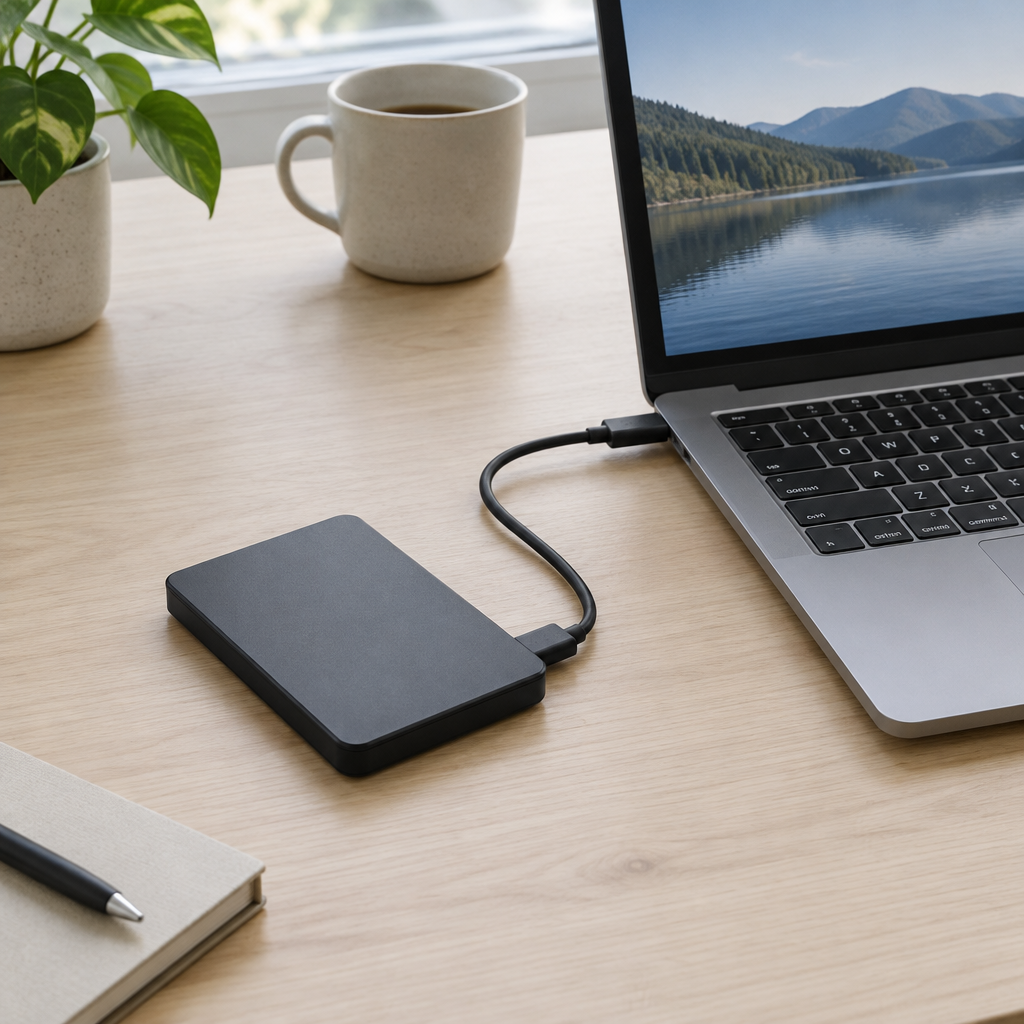
Seagate’s FireCuda Forge is an external storage product built around a hybrid idea: a large hard drive paired with a user-provided NVMe SSD, with the system’s Alkemi intelligent platform intended to prioritize recently and frequently used data. According to Seagate’s Nov. 10 announcement, the drive is offered in 8 TB and 20 TB capacities, uses USB4, and requires Windows 11 or macOS 26 and later. Regional availability may vary.
That makes Forge interesting for buyers who want capacity first, but it also changes how you should evaluate it. Instead of treating it like a simple external drive, it is better to check how your own workflow behaves when the same project is opened more than once under the same setup. The safest way to do that is with copies only, using a controlled, repeatable test.
What to confirm before the first run
- Confirm that your system meets the stated OS requirement before you start: Windows 11 or macOS 26+.
- Confirm that the drive is connected with the same host port and cable you plan to use for every comparison.
- Make sure the application you want to test is fully installed and updated before the first run.
- Use a copied project or duplicate workload file, not the original working file.
- Keep a backup of the source data and do not format or modify the drive for the sake of the test.
Because the Forge depends on a separate user-provided NVMe SSD, your notes should clearly identify the SSD you used, the host machine, and the cable path. If you change any of those variables, you are no longer comparing the same test conditions.
A simple three-stage test that stays safe
The goal is not to prove a universal result. The goal is to observe how your own workload behaves on this setup compared with your current drive, using the same steps each time.
- Stage 1: Open one representative project from a copy and time the run to a consistent milestone, such as the point where the file fully opens, the first preview appears, or the timeline becomes usable. Record the host, cable, app version, and any background activity you notice.
- Stage 2: Close the file, then open the same representative project again under the same conditions. Use the same milestone and record the elapsed time again. Do not assume why the result changes; just note whether the second run behaved differently.
- Stage 3: After a separate representative workload has been opened and used once, return to the first project and repeat the same timing step. This helps you see whether repeated access changes the experience in your workflow.
If you want a comparison, run the same three stages on your current external drive using the same project copies, the same application state, and the same host setup. That gives you a practical side-by-side view without needing to infer what the device’s internal caching is doing.
What to record during each pass
- Elapsed time to the same milestone every time.
- The exact host machine and connection path.
- The application name and version.
- Whether the project was freshly opened, reopened, or revisited after another workload.
- Any visible background tasks, indexing, sync activity, or app prompts that may affect the result.
One important caveat: operating systems and applications can keep their own caches, so a second open may be faster for reasons that are not tied to any one storage layer. That is normal, and it is why the test should be described as a repeat-use comparison rather than a true cold-start measure. Avoid claiming a cold test unless you can actually control every caching layer involved, which is difficult in ordinary desktop use.
How to read the results
A faster repeat open tells you that this setup handled the project faster on that pass. It does not identify which cache helped. Similar times mean you did not observe a repeat-use advantage for that project under those conditions. If results vary, check whether the host, cable, app state, or background activity changed between runs.
Do not treat a single timing as a universal verdict. Use the same milestone, the same project copies, and the same system conditions before drawing any conclusion. If you need a longer view, repeat the test on another day with the same files and note whether the pattern remains consistent.
What to take from the comparison
Forge requires a separate NVMe SSD. To see whether the combination helps with your work, open one representative project from a copy, reopen it, and then revisit it after another workload. Compare the same sequence on your existing drive. The timings describe your workflow; they do not reveal where the device stored any given file.
Sources
Seagate’s November 10 FireCuda Forge announcement
Tom’s Hardware hands-on overview