Why test Smart Subtitles on one clip first?
AWS announced automatic subtitle generation in MediaConvert VOD jobs on November 6, 2026. The useful question for editors and operators is not whether the feature exists, but how to confirm that a successful transcode produced usable subtitles for the right audio. The safest answer is to validate one short, representative clip before changing a broader workflow.
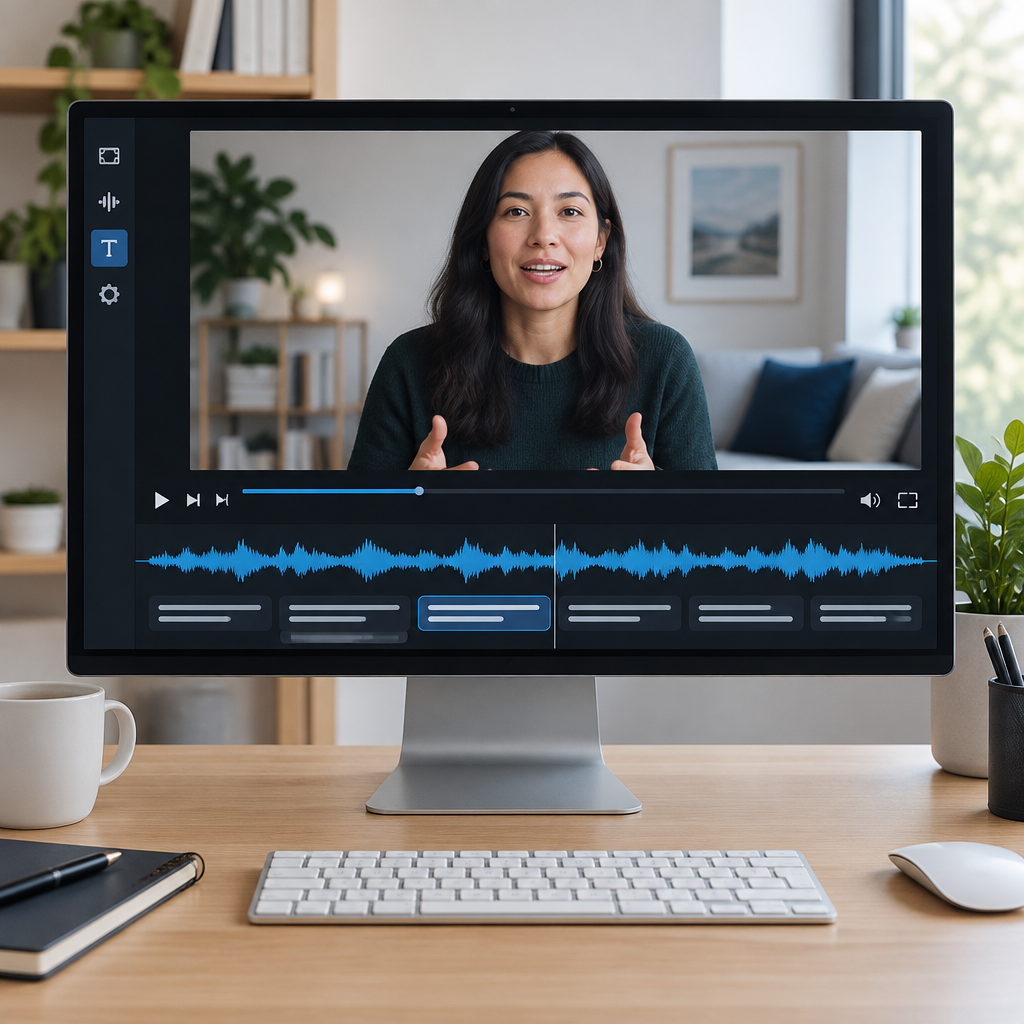
That first check should stay narrow and practical. Use a clip that includes names, technical terms, and, if relevant, a second audio track. Then confirm three things: the selected track is the one you expected, the text matches the spoken audio, and cue timing feels right in playback.
AWS announcement: MediaConvert Elemental Smart Subtitles
What AWS says to configure
AWS’s guide says to choose Smart subtitle under Captions source, select a compatible Destination type, and set Audio source name and Language so they match the source audio. The release lists six supported languages: English, French, German, Italian, Portuguese, and Spanish. It also includes sidecar and burn-in output options, but that does not mean every codec or destination is supported, or that the output will always meet a specific accessibility standard without review.
It is also important not to assume translation is part of the feature. Smart subtitle generation is about creating subtitles from the source audio, not translating them into another language. If your workflow depends on a translated deliverable, you should treat that as a separate requirement and verify it independently.
AWS user guide: Smart subtitling with Elemental inference
AWS support tables by container type
How to choose a good test clip
A short clip is enough if it reflects the hardest part of the content you actually deliver. Pick a section that includes proper names, project titles, acronyms, technical vocabulary, or fast dialogue. If you sometimes deliver with multiple tracks, include a clip where the wrong-track risk is real, such as a mix with a commentary track or a dubbed track alongside the primary mix.
The goal is to expose failure points early. A clip with only clean, simple speech may make the workflow look better than it will be in real use. A representative sample helps you see whether the selected audio source and language setting are correctly tied to the intended program audio.
Hypothetical example: a 45-second interview clip includes a speaker named “R. S. Venkataraman,” a product term like “transcode ladder,” and a second English commentary track. If the wrong audio source is selected, the subtitles may still be generated successfully but for the wrong voice, which makes the job technically complete and editorially unusable.
What to verify after the transcode
- First, check that the selected audio track is the one you intended.
- Then read the subtitle text against the audio for meaning, spelling, names, and technical terms.
- After that, inspect cue timing: do subtitles appear early, late, or hold too long?
- Finally, open the result in the actual delivery player to confirm the intended behavior: toggleable sidecar subtitles should act like optional captions, while burn-in subtitles should remain permanently visible in the video.
That last step matters because the output may look acceptable in a preview panel but behave differently in the real playback environment. If the delivery player is the final viewing context, use that environment for the last validation pass. The point is not to overtest every asset; it is to verify the asset in the place where viewers will actually watch it.
Keep human review and add a simple release gate
Automatic subtitle generation can save time, but it should still pass a human review gate before release. A simple rule is enough: if the subtitles contain errors that affect meaning or timing, do not ship them as final. Correct the issue, re-run the clip if needed, and review again.
AWS also notes that custom dictionaries are available per release. That can help with recurring names or terminology, but it should not be treated as a guarantee. Custom vocabulary still needs to be tested on real clips so you can confirm that the system handles your terms the way you expect.
What this test does and does not prove
A successful short-clip test can show that your configuration, chosen track, language setting, and delivery format work together for one representative case. It does not prove that every source, codec, destination, or future program will behave the same way. It also does not guarantee output quality, accessibility compliance, or cost outcomes.
Used this way, MediaConvert Smart Subtitles becomes a controlled workflow check rather than a leap of faith. Test one clip, inspect the right audio, review the text and timing, and confirm playback behavior before you change your production process.