CorridorKey 2.0 Time Awareness: Render a Range Before Judging the Key
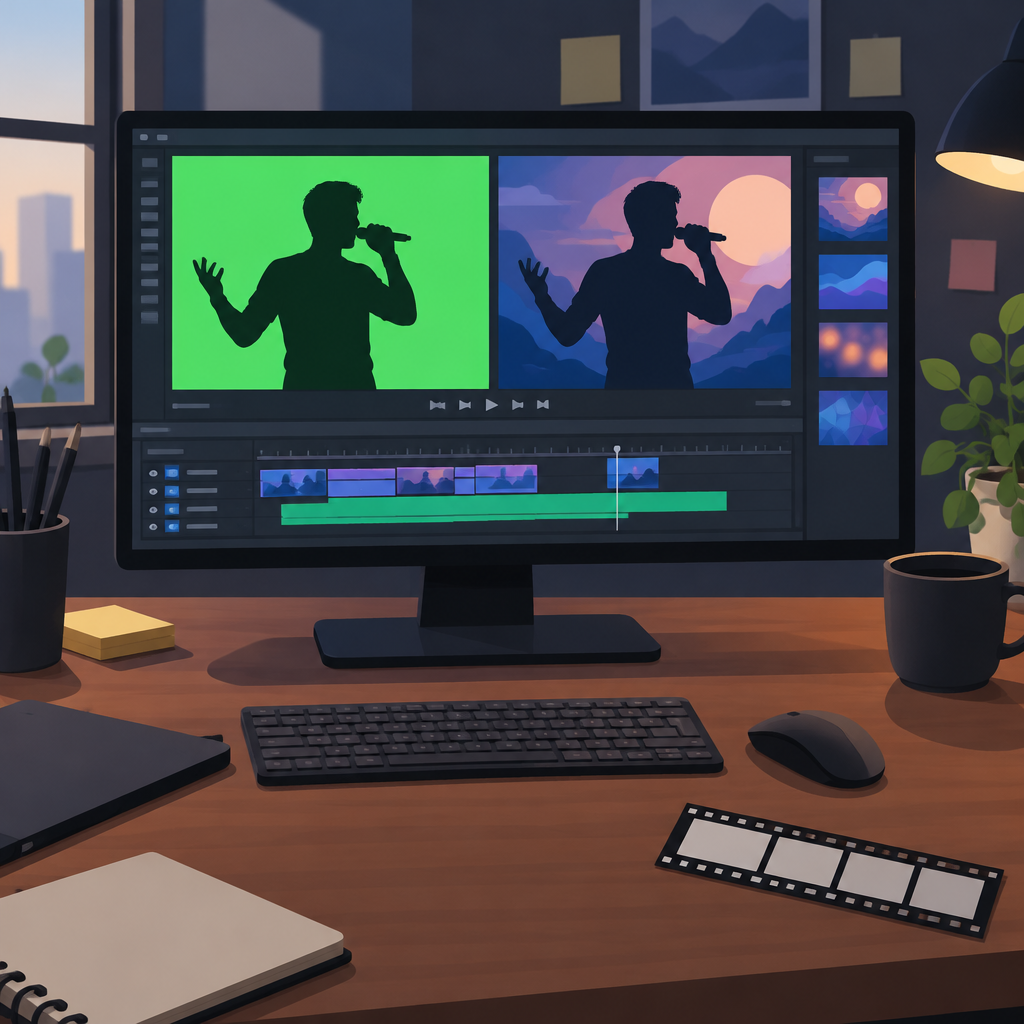
A green-screen extraction can look convincing in one still frame and become distracting when the subject moves. For editors evaluating CorridorKey 2.0, the useful test is a short moving range that exposes changes at the subject’s edges. One control deserves particular attention: the result of Time Awareness needs a render to be judged.
What the current beta offers
At the October 27, 2026 check, CorridorKey’s product page and manual label version 2.0 as beta. The product describes local green- and blue-screen keying, with plugins and a standalone application. Its claims about perfect keys and eliminating flicker are the maker’s claims, not independently verified results from this article.
CorridorKey 2.0: product description and beta status
A preview does not show this temporal result
The manual says Time Awareness uses surrounding frames and appears only in rendered frames, never in the preview. It also says more temporal frames require more GPU memory. A single-frame alpha hint needs this temporal processing to propagate through the shot. These details matter when comparing an immediate preview with a completed render.
Official manual: temporal processing, hints and memory controls
For a practical trial, choose a short range where the subject turns, hair moves or a blurred hand crosses the screen. Keep the source clip unchanged and save a baseline result. Then render the same range with the temporal setting you want to examine, using otherwise matching controls. This is a suggested comparison, not a tested preset.
Inspect the edge through motion
- Play both rendered ranges at the intended viewing speed, then inspect difficult frames more closely.
- Watch whether fine details disappear and return between adjacent frames.
- Check fast movement and partly transparent areas against more than one suitable background.
- Record where an unwanted object remains or part of the subject is removed.
- Keep the exact frame range and settings with each render so that a later adjustment can be compared fairly.
Decide what is acceptable for the actual shot. A small edge difference might be invisible in one composition and obvious in another. Avoid choosing a setting solely because one paused frame looks cleaner while the moving result becomes less consistent.
Treat memory controls as part of the comparison
The manual offers lower internal processing resolution and a low-memory mode. It says the output remains full size when internal resolution is reduced; this does not mean the processing happened at the original resolution. The low-memory option also uses project disk space and can render more slowly. Check the current guidance before applying it to a longer clip.
Change one setting at a time when investigating a problem. If you lower processing resolution to make a range fit, retain that fact in the comparison record. Inspect the new result for the details that matter to your shot, and measure time on your own machine rather than borrowing an unrelated speed claim.
Match the evidence to your build and host
The support matrix lists specific device, host, build and rendering-path measurements, including cases that remain unmeasured. It was last synchronized on October 24. Some current beta pages differ on host details: for example, the manual emphasizes Resolve’s Fusion page, while the getting-started guide also describes applying the effect on the Edit page. Confirm the instructions for your exact build and path before extrapolating from another setup.
Support matrix: measured configurations and stated boundaries
Getting-started guide: installation checks and host workflow
If the program loads but the range does not render as expected, preserve the status message, application version, plugin build, source format and settings. That gives support a reproducible question. A successful installation check and an acceptable finished shot are separate milestones.
Keep the decision tied to the finished shot
Use the rendered comparison to decide whether temporal processing improves the clip enough for your work. Expand to longer or more demanding shots only after the small trial answers that question. No plugin installation, footage processing, performance benchmark or purchase flow was independently tested for this article.