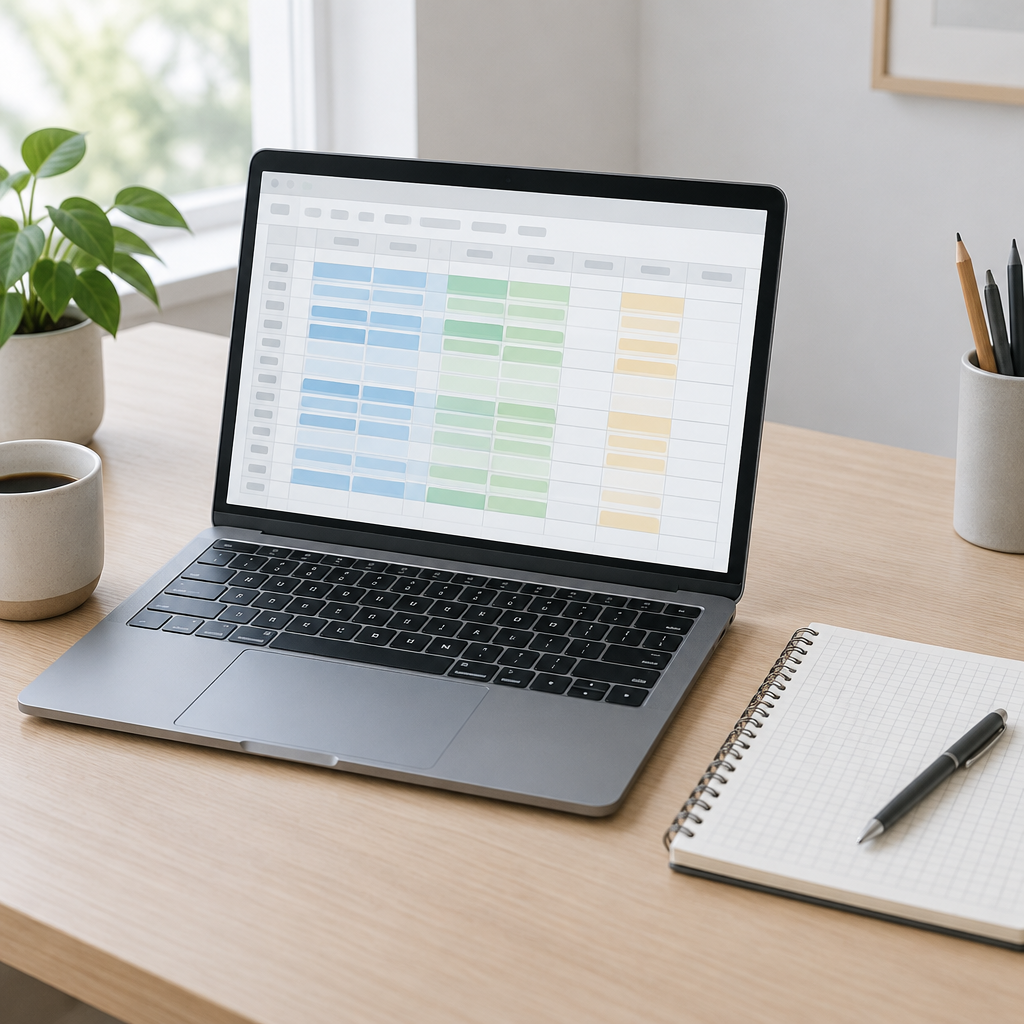
Anthropic’s Claude Sheets beta is a new spreadsheet artifact inside Claude, available on paid plans as of Nov. 10, 2026. It is distinct from Claude for Excel and Google Workspace, so it is best treated as its own workflow rather than a direct replacement for those tools.
What Claude Sheets beta can do
Claude Sheets supports formulas across tabs and can export to XLSX or CSV. The formulas stay visible in the sheet’s cells, so you can check which rows feed a total before handing the file off.
Anthropic: Claude Sheets launch announcement
Claude Help Center: Get started with Claude Sheets
Why export format matters
If formulas or workbook structure matter, do not assume every export will preserve them exactly as displayed in Claude. The safest approach is to reopen the exported file in the app the recipient will actually use and confirm the formula, values, and layout there. That is especially important for XLSX, where you should verify the exported file in the intended receiving app before sharing it.
CSV is different. It is suited to flat values, not workbook structure, so do not treat CSV as a format that preserves formulas, tabs, or workbook formatting. Use XLSX when those elements matter, then verify the result after opening it.
A simple range-check workflow
A useful habit is to keep totals away from the input column and test the formula range before export. For example, if column A holds task counts, put the total in another cell such as C2. Then verify that the formula covers exactly the rows you intend.
- Enter A1 as Tasks.
- Enter A2 as 4 and A3 as 6.
- Enter =SUM(A2:A3) in C2 and confirm that it returns 10.
- Type 5 directly into blank A4.
- Check whether C2 still refers only to A2:A3.
- If it does, adjust C2 to =SUM(A2:A4) and verify 15.
- If it already includes A4 and totals 15, no change is required.
If C2 still shows 10 after you enter 5 in A4, inspect the range before trusting the total. A formula that ends at A3 will leave out the new row.
Before you share the file
Before sending an exported XLSX, reopen it in the receiving app and confirm that C2 still shows the expected formula and total. In the same test copy, temporarily change A4 to 0 and expect 10, then restore 5 and expect 15. That quick recheck can reveal whether the exported workbook behaves as intended in the destination environment.
If your workflow depends on protected ranges or pivot tables, use the tool that already supports them rather than assuming export or conversion will add them. Also note that some launch limits apply: protected ranges and pivot tables are not yet available, Team is on by default, and Enterprise is off by default subject to organization settings and Artifacts access.