AWS Security Hub SBOM Inventory: What to Check When a Package Is Missing
AWS Security Hub’s SBOM Inventory can help cloud teams inspect software bill of materials data across supported AWS workloads. If a package looks missing, the first step is not to assume it is absent everywhere. Instead, confirm which account and Region you are viewing, whether you have administrator or member visibility, and whether the relevant Inspector-based inventory has had time to appear.
What SBOM means in plain English
A software bill of materials, or SBOM, is a structured inventory of software components found in a workload. In AWS Security Hub, that inventory is only useful if you interpret it carefully. A blank search result may reflect scope, permissions, timing, or resource coverage rather than true absence. Likewise, seeing a package listed does not by itself mean it is exploitable or exposed.
Start with the AWS release and the documentation
AWS announced the Security Hub SBOM Inventory feature on November 6, 2026. The most relevant starting points are the announcement, the Security Hub user guide for SBOM inventory, and the Inspector documentation that explains the underlying scanning context.
AWS What’s New: Security Hub SBOM Inventory
Security Hub user guide: SBOM inventory
Amazon Inspector documentation overview
Check inventory coverage before widening the search
Use this workflow when a package or version does not appear where you expect it. For this example, imagine a benign internal library named example-logging-utils version 1.4.2. The goal is to verify inventory coverage before drawing conclusions.
- Confirm the AWS account and Region you are querying. Inventory is scoped, and a package may appear in one Region but not another.
- Check whether you are viewing data with administrator privileges or from a member account. Visibility can differ across Security Hub organization setups.
- Confirm that Inspector coverage exists for the workload type you expect: EC2 instances, ECR images, or Lambda in AWS.
- Allow for a possible few-hour delay after Inspector generates an SBOM before expecting it to show up in Security Hub.
- compare a known package from the workload’s own manifest or package inventory against Security Hub’s Installed software tab for that resource
- Compare the exact package name and version, not just a partial name or a family label.
- Only after the known test resource is confirmed should you trace wider resource sets to understand whether the package is present elsewhere.
Why resource type matters
Security Hub SBOM Inventory depends on the underlying Inspector coverage for the workload type. An EC2 instance, an ECR image, and a Lambda function are different resource types, so a package visible in one type does not guarantee it will appear in another. If you are searching for a package and find nothing, verify that the relevant workload type is actually in scope before treating the result as meaningful.
Why a missing row does not settle the question
A blank result alone does not prove absence. The package may be outside the selected account, Region, or resource type, or the inventory may still be propagating after Inspector created the SBOM. On the other hand, a package entry on its own does not establish exploitability. You still need context such as workload type, version, and whether the resource is actually the one you intended to inspect.
One package row versus many installations
It helps to separate a single package/version row from a count of installations across resources. For example, a row for example-logging-utils 1.4.2 may show that the package exists in inventory, while a separate count could indicate that the same package/version is installed on several EC2 instances or appears in multiple container images. Those are different questions: one asks whether the package exists at all, and the other asks how widely it is distributed.
A simple verification sequence
When the package seems missing, move from narrow to broad checks. Start with the exact known resource, confirm the installed package name and version, then verify that Security Hub is reading from the correct account, Region, and resource type. If the package is present on the known test resource but absent in a broader query, the issue is likely scope, timing, or visibility rather than true absence.
Brief checklist
- Correct account and Region selected
- Administrator or member visibility understood
- Inspector coverage confirmed for EC2, ECR images, or Lambda
- Few-hour ingestion lag considered
- Known test resource checked first
- Exact package name and version matched
- Broader search only after coverage is validated
Bottom line
AWS Security Hub SBOM Inventory is most useful when teams treat it as a coverage and verification tool, not a yes-or-no verdict by itself. If a package is missing, verify scope, resource type, visibility, and timing before concluding anything about the environment. That disciplined approach helps avoid false assumptions and keeps reviews grounded in what the inventory actually shows.
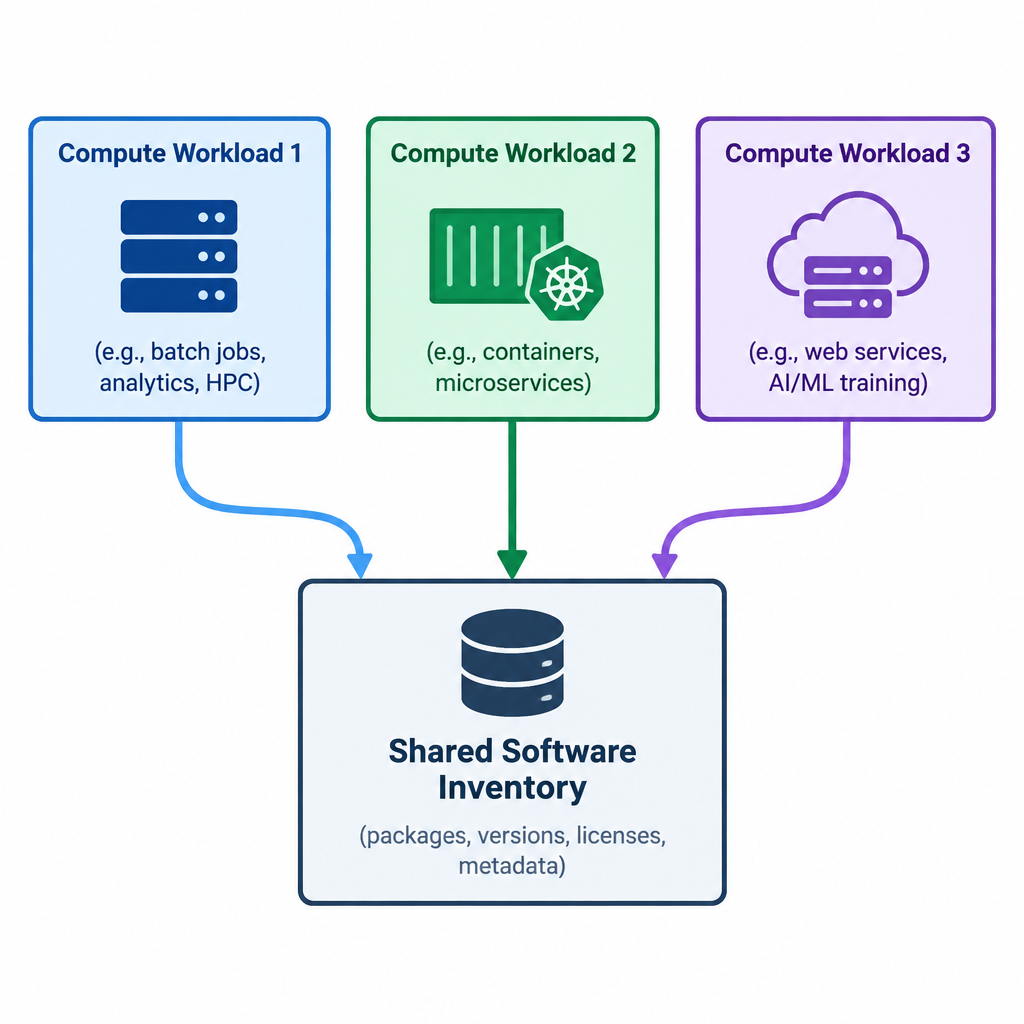
Three compute workloads feed a shared software inventory.