You can check connection status, compare an approved network and collect useful evidence without administrator access. On a managed work laptop, stop when settings are locked or a certificate warning appears; IT must handle security-policy changes.
Start here: get your next step
The Work Wi-Fi Next-Step Helper asks four questions and creates a copyable IT message. It runs in your browser and does not scan your device, change settings, request passwords or send anything to IT.
Open the Work Wi-Fi Next-Step Helper
1. Check Wi-Fi and Airplane mode
Select the Network, Sound or Battery area on the taskbar to open Quick Settings. Check that Wi-Fi is on and Airplane mode is off, if your organization permits these changes. Select the arrow beside Wi-Fi to view connections. Save your work before restarting your laptop; leave shared office routers alone.
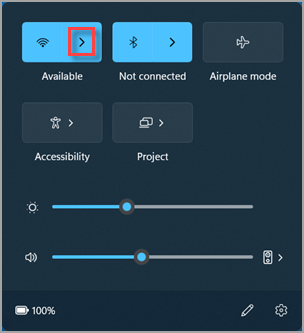
Screenshot credit and instructions: Microsoft Support — Connect to a Wi-Fi network
2. Compare one approved network
If company policy allows, check another IT-approved network or an allowed phone hotspot. Ask whether colleagues are affected. If home Wi-Fi works but work Wi-Fi fails, report that distinction; it points toward a work-network-specific problem without proving its cause. If every tested network fails, start with general connectivity checks.
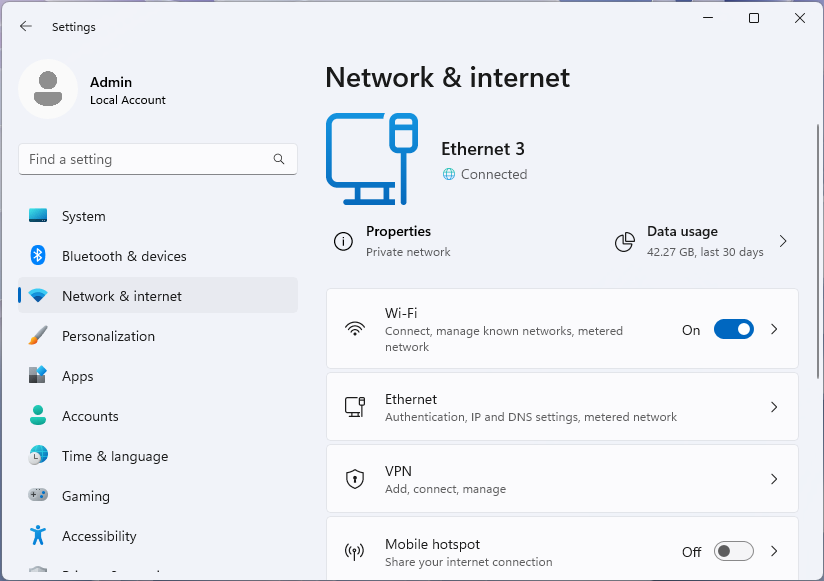
Screenshot credit: Microsoft Learn — Windows network settings
3. Record your Windows version and recent updates
Open Settings > Windows Update > Update history, if accessible. Note recent KB numbers and when the issue started. Type winver into Start search and open it to view the Windows version and build.
One specific lead is the October 13, 2026 KB5127648 update for Windows 11 24H2, 25H2 and 26H2. Microsoft documents stricter NTLMv1-derived credential single sign-on behavior on eligible devices with Credential Guard disabled and BlockNtlmv1SSO absent. Some MS-CHAPv2-based work Wi-Fi, Ethernet or VPN sign-ins may be affected. An update appearing before a failure is a clue, not proof.
Source: Microsoft — October 13, 2026 KB5127648 release notes
4. Use only the expected company sign-in prompt
Microsoft says manual credential entry continues to work for that specific single-sign-on restriction. If your approved network presents the expected sign-in prompt with normal certificate validation, follow your company's sign-in procedure. This is not a guaranteed fix for unrelated failures. Never enter passwords into this article or helper, or accept an unexpected certificate warning. If the option is absent, locked or unfamiliar, contact IT.
Source: Microsoft — NTLMv1 changes and manual sign-in FAQ
5. Give IT observations they can act on
Record the error, timing, network comparison and Windows build. Redact sensitive details from screenshots before sharing through your approved IT channel. Do not reset the network, uninstall updates, disable protections or edit the registry. Forget a managed network only if IT approves and explains how to restore its profile.
For the specific authentication restriction, IT can investigate NTLM Operational Event 4025. A temporary audit-mode exception reduces protection and belongs to IT; certificate-based migration is a longer-term IT project.
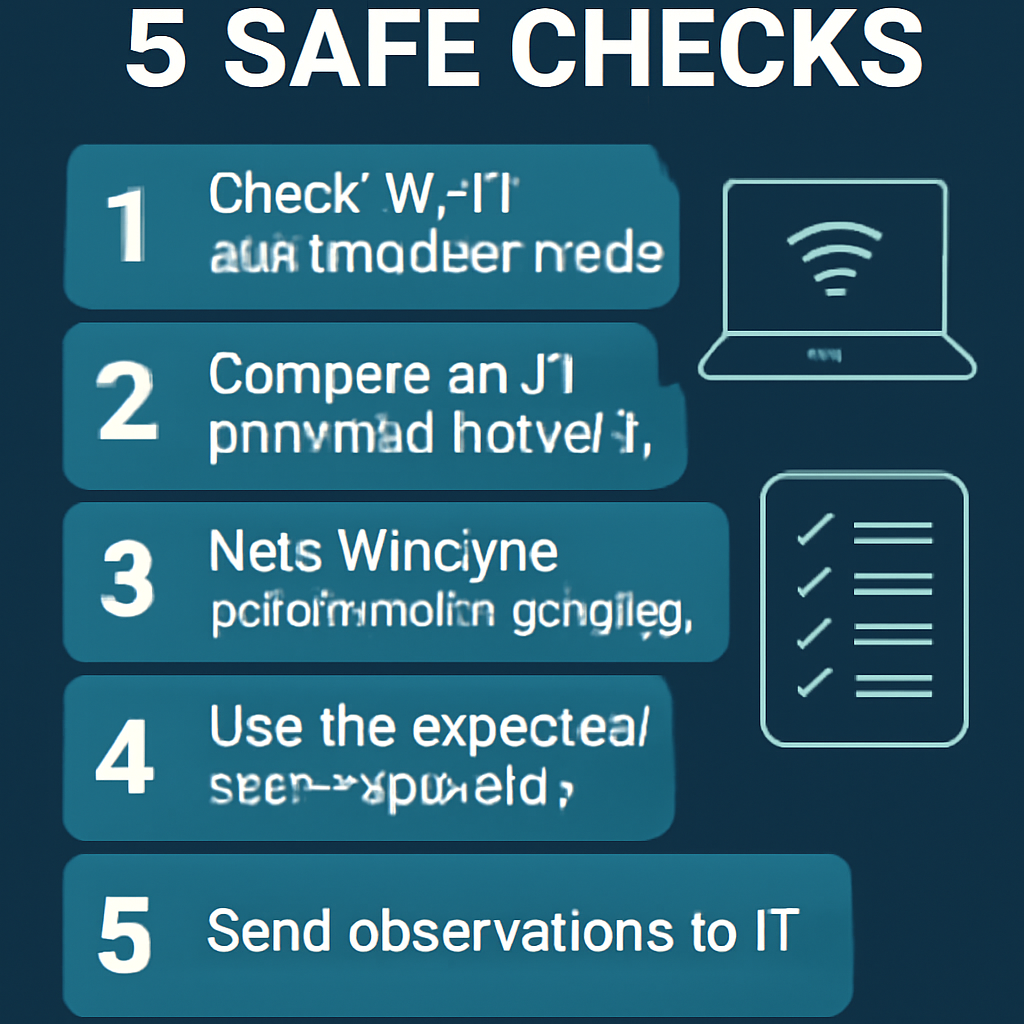
The five-step infographic is an original explanatory illustration, not a Windows screenshot.
Copy this IT message
Subject: Windows 11 work Wi-Fi connection issue Hi IT, work Wi-Fi is failing on my laptop. Started: [date/time] Symptom or error: [redacted details] Other approved networks: [work / fail / not tested] Colleagues affected: [yes / no / unknown] Windows version/build and recent KB: [if accessible] Checks tried: [observations] Please advise the approved next step.
Common questions
- Why does home Wi-Fi work? Work networks may use different authentication, certificate and policy requirements; only IT can confirm the cause.
- Can Ethernet also fail? Certain managed Ethernet and VPN sign-ins can share the affected authentication method.
- Do these checks require admin rights? Usually not, but company policy can restrict access. Stop at a locked setting and contact IT.
More help: Microsoft — Fix Wi-Fi connection issues in Windows
Guidance checked October 18, 2026. Microsoft screenshots are credited above; screen layouts vary by Windows build and organization.