Why one careful project check matters
Rockwell announced PanelView Pro on November 10, 2026. The company says the new terminals support reuse of FactoryTalk View Machine Edition (ME) applications and share some panel cutouts with PanelView Plus 7 Performance models. Availability begins in the fourth quarter of 2026, with more configurations planned for 2027. Confirm fit and project support for the exact replacement before planning a swap.
Rockwell Automation’s PanelView Pro announcement
Step 1: Identify the exact existing terminal
Start with the current terminal’s full catalog number, display size, bezel style, communication options, and firmware revision. The existing-terminal manual is the right place to verify physical and functional details before you compare it to a replacement candidate. Do not rely on a family name alone; a PanelView model series can include multiple variants with different cutouts, memory, ports, or supported firmware ranges.
Rockwell existing-terminal manual (PDF)
Step 2: Compare the candidate replacement exactly
Record the current and proposed catalog numbers side by side. Compare the candidate’s mounting drawing with the existing panel opening, and verify the project’s FactoryTalk View ME runtime version against the candidate’s supported firmware. A project that opens in the engineering software still needs to run on the intended terminal.
- Current and candidate catalog numbers recorded separately
- Cutout dimensions and mounting depth compatibility
- Power and communication interface compatibility
- Firmware version support for the project build
- Any project features that depend on unsupported runtime functions
Step 3: Bench-check the project on isolated hardware
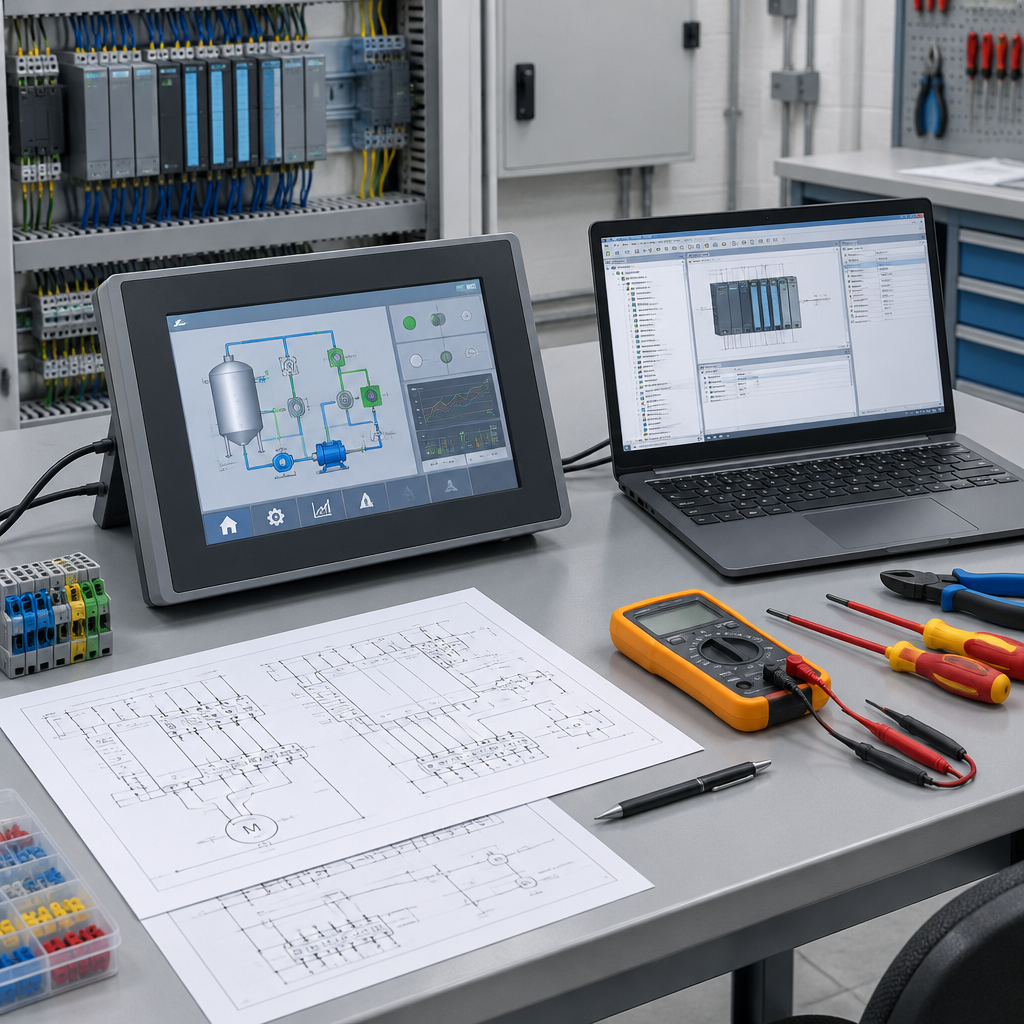
After the catalog and firmware review, bench-check one display offline using simulated tags. Use isolated hardware only, with no live plant connection. The goal is to confirm basic project behavior: screen navigation, alarms, tag updates, button actions, and any trend or data display logic that matters to the application. This is a validation step, not a guarantee that the same result will appear on production equipment.
- Restore or open the existing FactoryTalk View ME project in a test environment
- Map the project to simulated tags or a controlled test source
- Load a copy of the project on the exact candidate terminal. If you use a simulator instead, record hardware compatibility as unverified.
- Verify startup, page changes, alarms, and key operator actions
- Document any mismatches before considering a field swap
What the announcement changes—and what it does not
For example, if the mounting drawings match but a simulated alarm never appears on the candidate terminal, record physical fit and runtime behavior separately. Leave the swap on hold until the engineering team can explain the mismatch. An isolated bench check does not validate production communications or safety functions.
Practical takeaway
If you only do one thing, do this: choose one installed PanelView terminal, compare its exact catalog number and cutout requirements with one candidate replacement, confirm firmware support, and bench-test the project with simulated tags on isolated hardware. That sequence gives you a realistic view of fit, function, and risk before any plant-side decision.