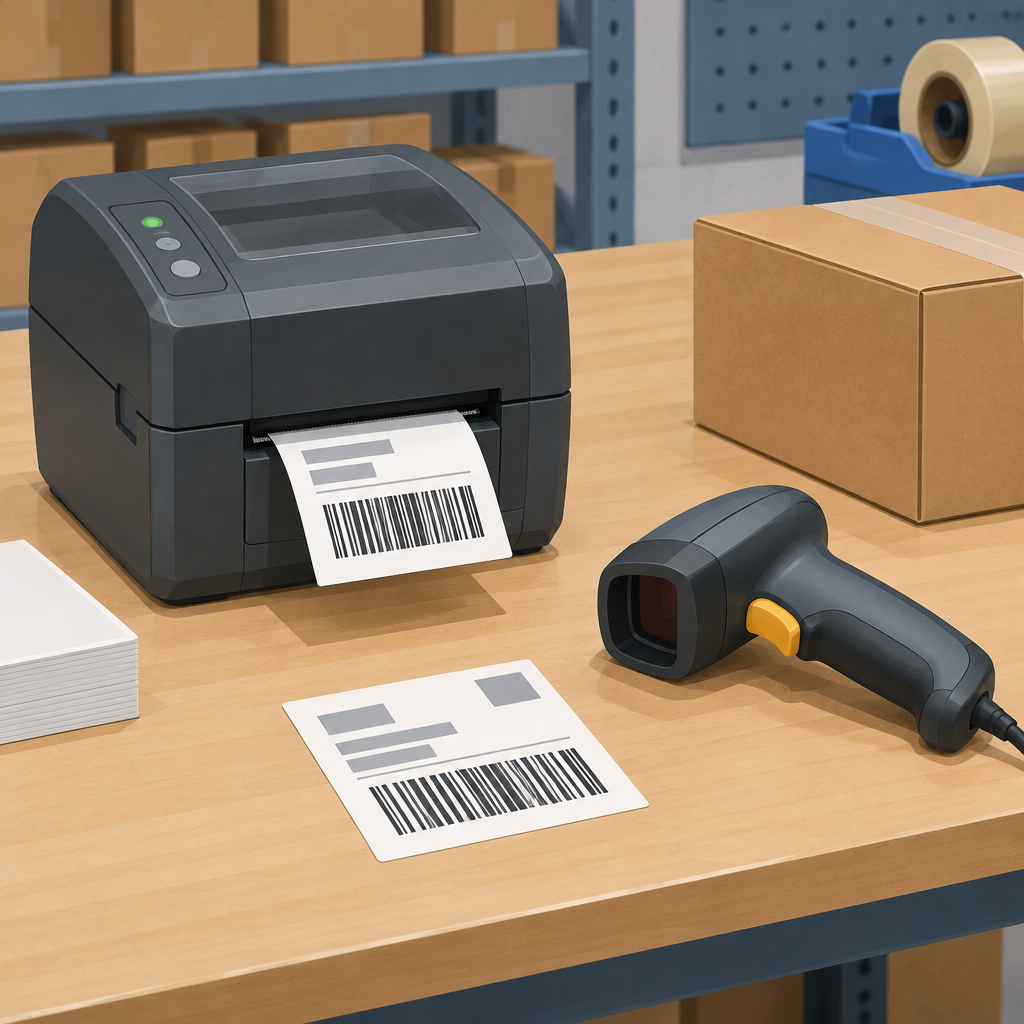
Why keep a reference label now?
On November 16, 2026, Loftware announced an agreement to acquire Seagull Software, the developer of BarTender. Later that day, Peak Rock Capital said its affiliate had sold Seagull to Loftware. Neither announcement set a migration date or told BarTender users to change their print setup. If your team relies on BarTender for warehouse labels, capture one working example now so you can compare it with the output after a future change.
Start with one approved nonproduction setup
Use one approved nonproduction printer or queue and keep the test label out of shipments. Save a single known-good template revision and record the exact data field mapping, printer driver, stock, and expected output. The point is to create a simple reference you can compare against later, not to prove every possible issue.
- Template revision: note the exact BarTender file or revision you used.
- Data mapping: document which fields populate the label and in what order.
- Printer and driver: record the nonproduction printer name and driver version in use.
- Stock and layout: note the label stock, size, orientation, and any print settings that matter.
- Sample data: use a fictional warehouse SKU such as TEST-0042, and include a case with a leading zero only if that detail matters to your workflow, such as 0042.
- Copy count: confirm the number of labels printed matches the requested count.
Compare what printed to what was expected
Compare the printed text with the expected text. Separately, compare the barcode scanner’s decoded string with what the template is supposed to encode. These two values can differ by design. If the barcode should contain 0042 and the scanner returns 42, record a mismatch even if the label looks right. Save the expected and actual values and mark each check as pass or fail. An ordinary scanner read only shows that the barcode decoded on that setup.
Seagull’s documentation describes formal verification using a verifier-enabled printer, which is a separate process from a simple scan. If you need to investigate print problems, keep the troubleshooting step focused on the specific queue, driver, stock, or template setting involved rather than assuming the label system itself has changed.
What to save for the next change
Save the template revision, sample input, and pass or fail record together. After a future change, repeat the same job with the same input and compare the results. If the outputs differ, check which part changed: template, field mapping, driver, stock, or print queue.
Seagull: Troubleshooting Printing Problems