Cloudflare RealtimeKit noise cancellation: what changed and what to test first
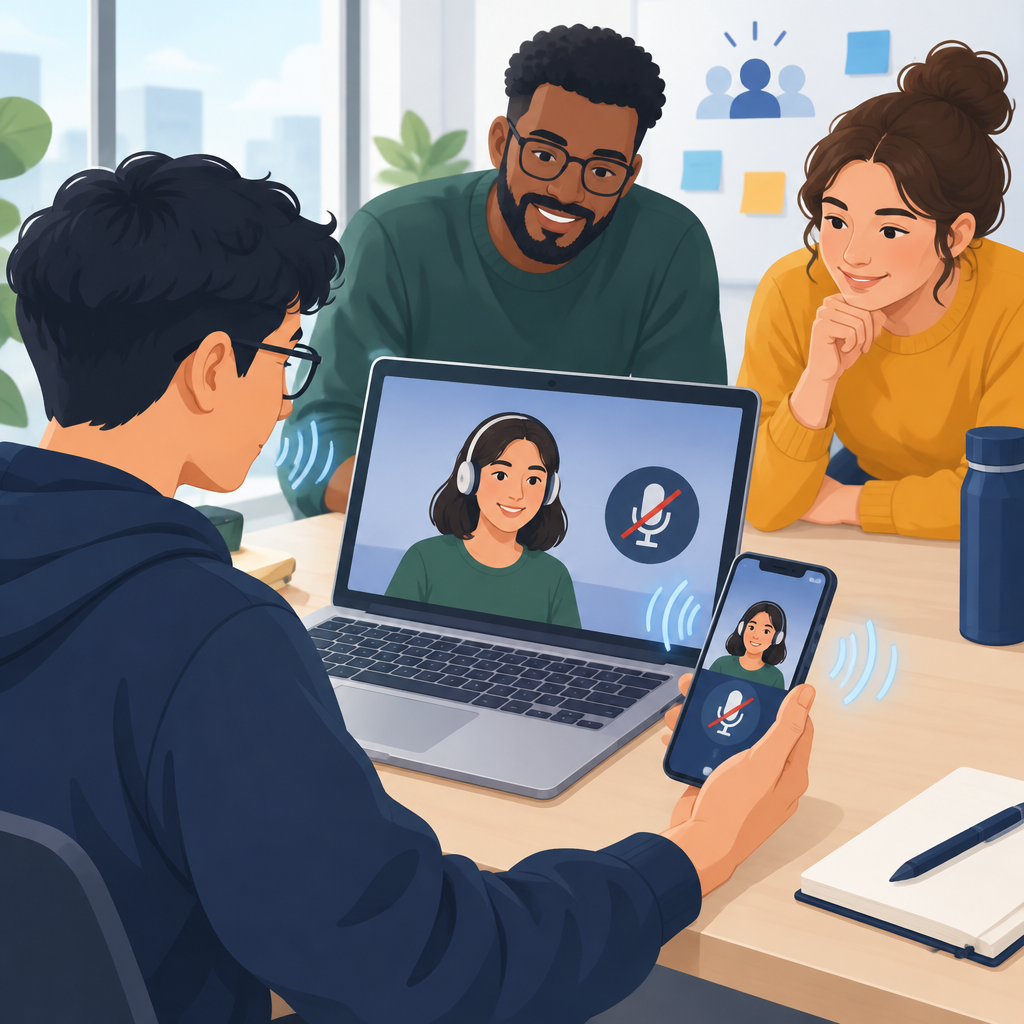
Cloudflare highlighted RealtimeKit noise cancellation in its November 12 changelog. The package filters microphone audio in the browser before the meeting receives it. Before enabling it for everyone, run one call with a colleague and check whether speech stays clear, the microphone stays muted when expected, and filtering resumes after a reconnect.
According to Cloudflare’s documentation, noise cancellation works in the browser by filtering audio on the device rather than relying on server-side processing. That matters because the quality, latency, and compatibility can vary depending on the user’s device, browser, and connection. It also means you should test the feature in the same environment where users will actually meet, especially if your product serves both desktop and mobile web users.
How the browser-based filtering works
The core idea is straightforward: the client-side browser handles noise filtering before audio is sent into the meeting session. That keeps the feature close to the user’s microphone input and avoids a server round trip for suppression. In practical terms, this is helpful for reducing common background sounds such as typing, fan noise, or room hum, but it also means the browser has to support the workflow correctly for the result to be reliable.
Cloudflare lists support for Chrome, Edge, Firefox and Safari, including mobile browsers. The native RealtimeKit iOS and Android SDKs do not support this package. Test mobile web separately from desktop web, and keep native apps outside this rollout.
Initialize after the meeting instance is ready
Call RealtimeKitNoiseCancellation.init({ meeting }) after initializing the meeting instance. Keep the call separate from the join flow and handle errors without delaying entry. With the default automatic management, processing starts when the microphone becomes available and the participant unmutes.
This is also where many rollout bugs appear: users may join muted, switch devices, or reconnect after a drop. If your initialization happens at the wrong time, the app may fail to preserve the right microphone state or may apply the filter inconsistently after a reconnect. Before broad rollout, exercise those transitions deliberately.
No auto-unmute, and why that matters
A useful guardrail in the rollout plan is that noise cancellation should not trigger auto-unmute. That is important for user trust and meeting etiquette. A participant who has muted themselves expects to stay muted until they decide otherwise. If the audio pipeline changes during join, reconnect, or device switching, your application should keep that muted state intact.
When teams test this behavior, they should confirm that muting remains stable across the full meeting lifecycle. The feature can improve spoken audio quality, but it should never surprise users by changing whether they are actively broadcasting. That is especially important in enterprise or webinar-style use cases where accidental unmute events can create real problems.
A simple two-person verification checklist
Before rollout, use two people and test the feature in a realistic call. One person should act as the speaker and the other as the listener. Then compare the experience before and after enabling noise cancellation. This does not need a formal lab setup, but it should be structured enough to catch obvious regressions.
- Voice clarity before and after enabling noise cancellation
- Keyboard noise and other background sounds during active speaking
- Mute state while toggling the microphone on and off
- Reconnect behavior after briefly dropping and restoring the session
- Leave and rejoin behavior to confirm the filter and audio state reset correctly
If possible, repeat the same test on at least one mobile browser and one desktop browser. The goal is to validate the same human experience across device classes, not just the technical activation of the feature. For teams shipping quickly, this small checklist can catch the issues that matter most to users.
What to check before expanding the rollout
Start with a limited internal rollout on supported browsers. Compare the same sentence and keyboard noise with filtering disabled and enabled, and log the browser, device and microphone. If a listener hears audio while the speaker is muted or filtering fails to resume after reconnect, keep that browser or configuration out of the rollout until you can reproduce and fix the issue.
Used carefully, Cloudflare RealtimeKit noise cancellation can make meetings easier to follow without adding much friction to the user flow. The safest rollout strategy is to treat it as an audio-state feature first and an audio-quality feature second: verify the behavior, then scale it.
Cloudflare changelog announcement: RealtimeKit noise cancellation
Cloudflare documentation: RealtimeKit noise cancellation